Accounting
In BeNeering User Settings, you can create personal templates for frequently used account assignment categories. These templates ensure consistency, and eliminate errors.
Account assignment is a crucial field. It tells SAP which department, project, or asset is charged, which manager approves, and how finance books it when your purchase requisition (PR) converts to a purchase order (PO) and eventually reaches goods receipt/invoice. Without proper account assignment, the user cannot submit the Purchase Requisition.
SAP standard account assignment categories:
Here are the main categories in Guided Buying:
Cost Center (K): Departmental operating expense account.
Order (F): Temporary project or campaign cost collector.
Project (P): Long-term investment project structure.
Asset (A): Fixed assets posted to the balance sheet.
Sales Order (C): Customer-driven third-party procurement.
Network (N): Project System network or activity cost assignment.
Unknown (U): Services without predefined cost object assignment.
BeNeering templates support all standard SAP account assignment categories and customer-specific customizations configured in your SAP ECC/S4 HANA system.
How to create an accounting template in Guided Buying
To create an accounting template in Guided Buying, follow these steps:
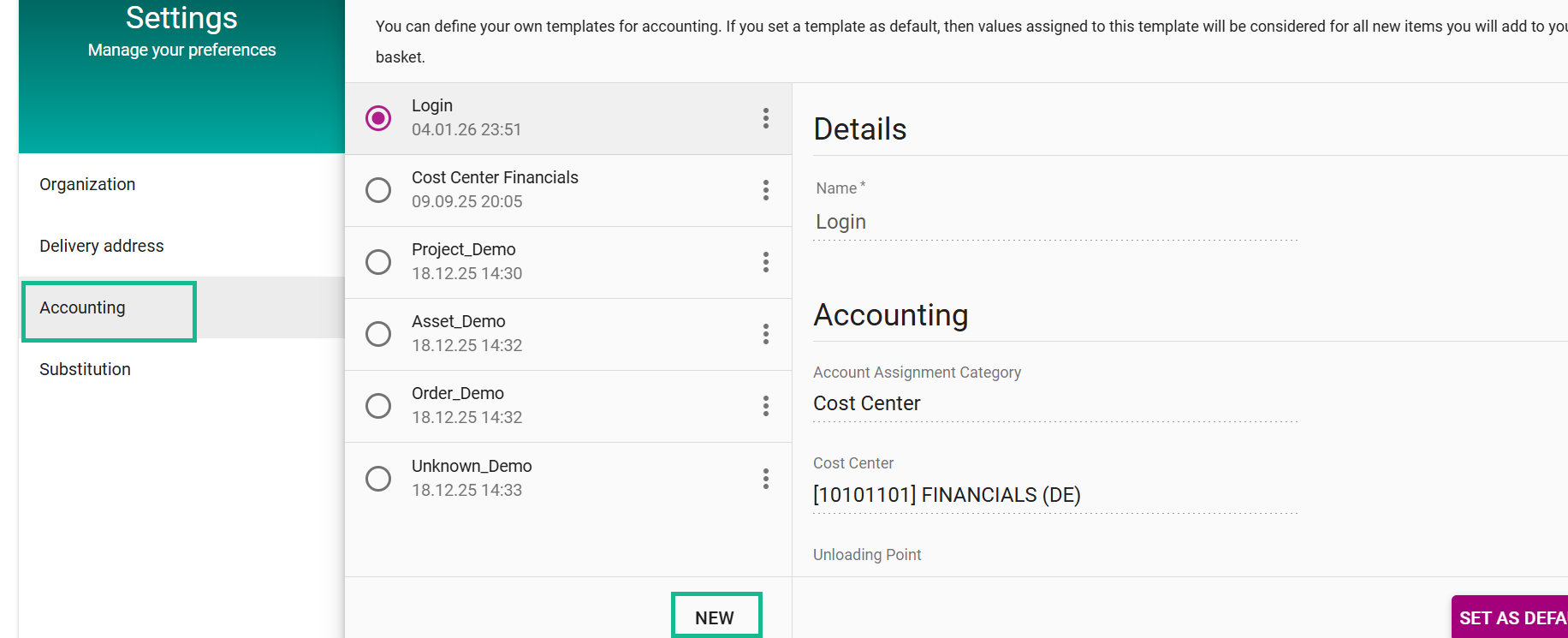
Open the Accounting templates area
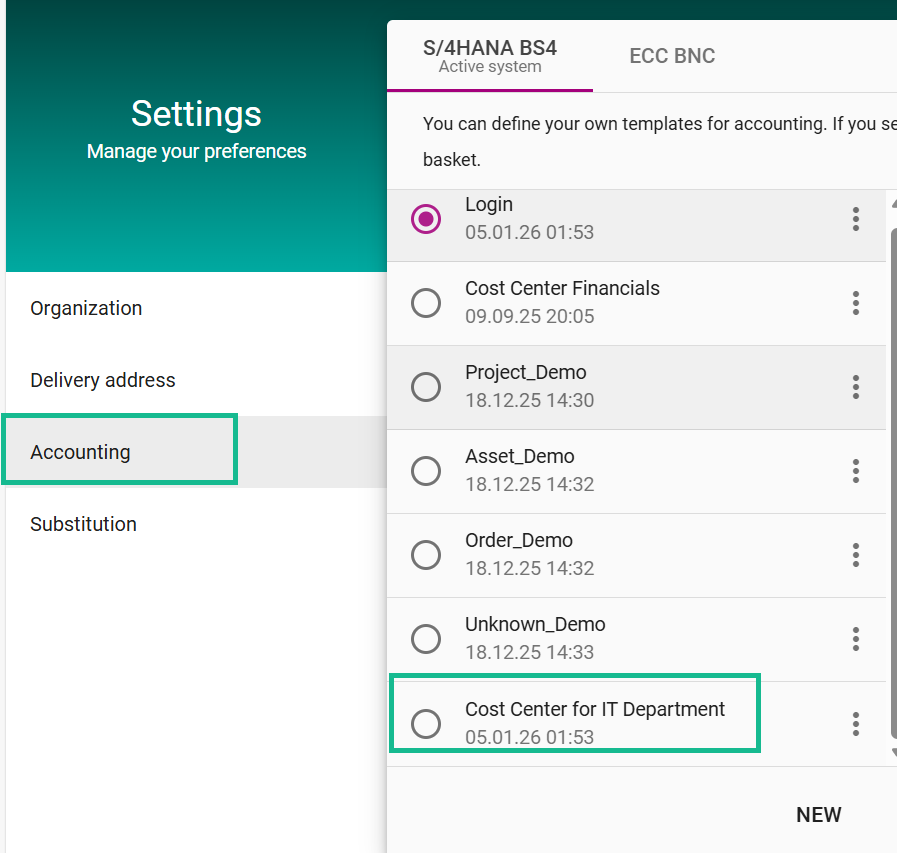
Go to User Settings and navigate to the Accounting section.
Click New to create a new template.
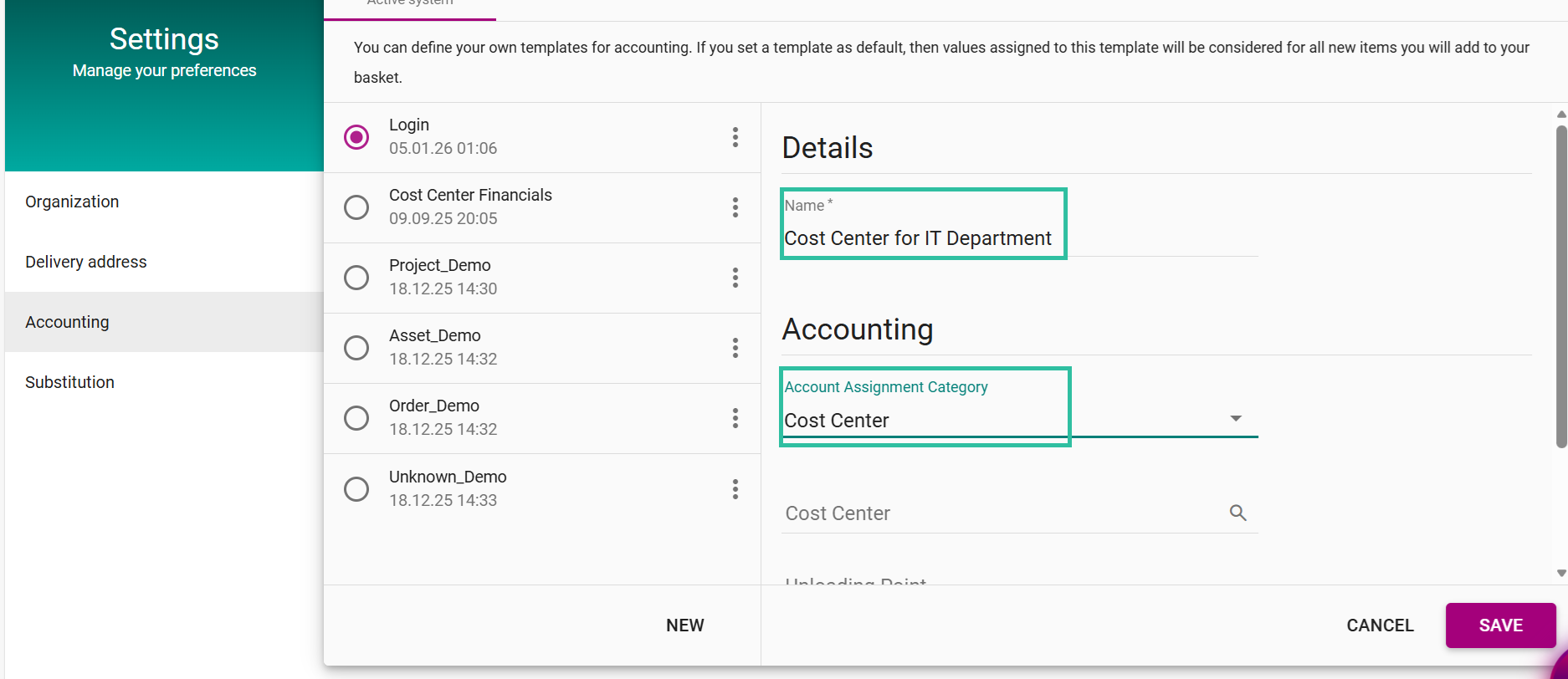
Name the template and choose the category
Enter a clear template name (e.g., “Cost Center for IT Department”).
Select the appropriate account assignment category. For example, choose K – Cost Center
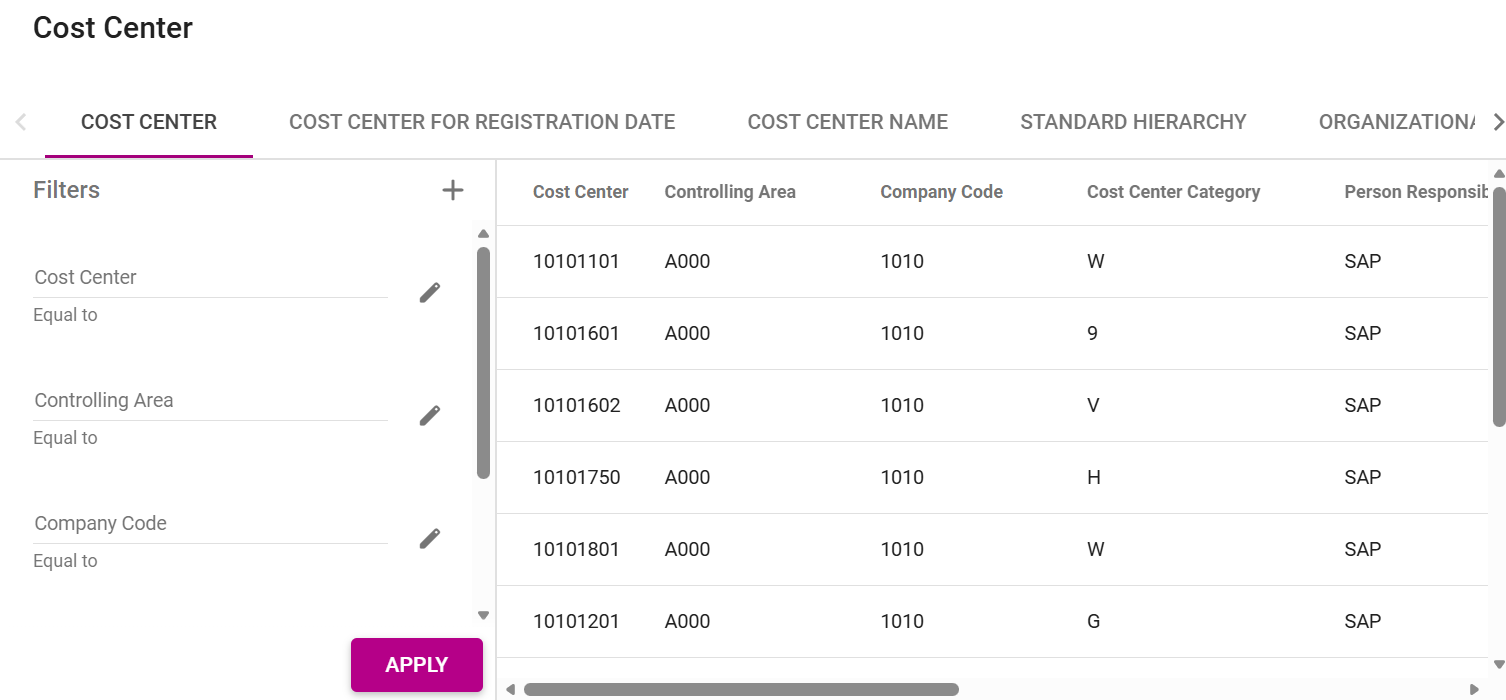
Search and select the cost center
In the Cost center field, click the search icon
 .
.A search dialog opens where you can use filters (such as company code or controlling area) to display the required cost centers and press Apply.
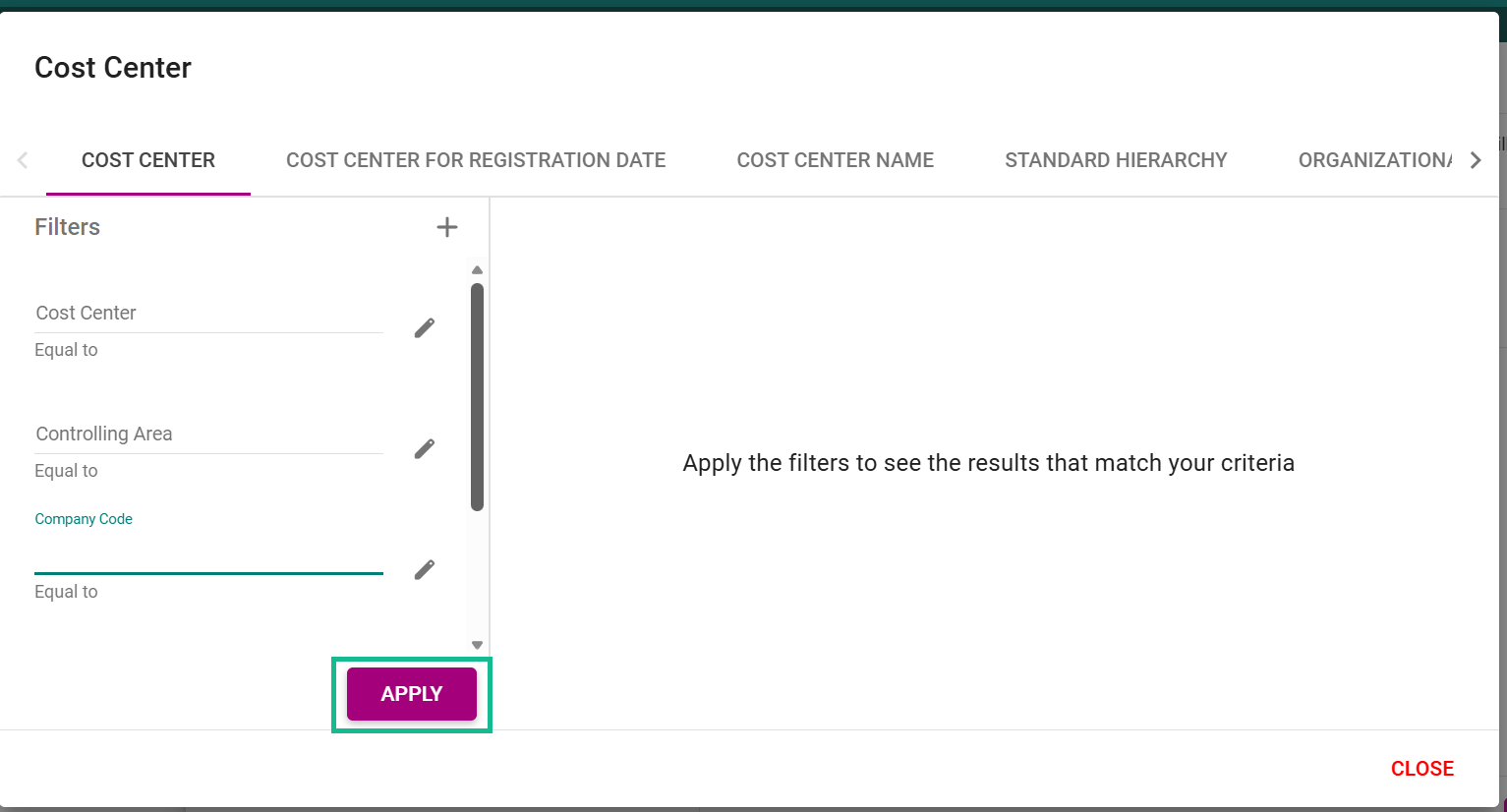
Note: Without filters, you'll see all cost centers from SAP that you are authorized to use.
BeNeering retrieves the cost center master data directly and in real time from the connected SAP system, so only valid and active cost centers appear. This ensures data consistency and plausibility between Guided Buying and SAP.
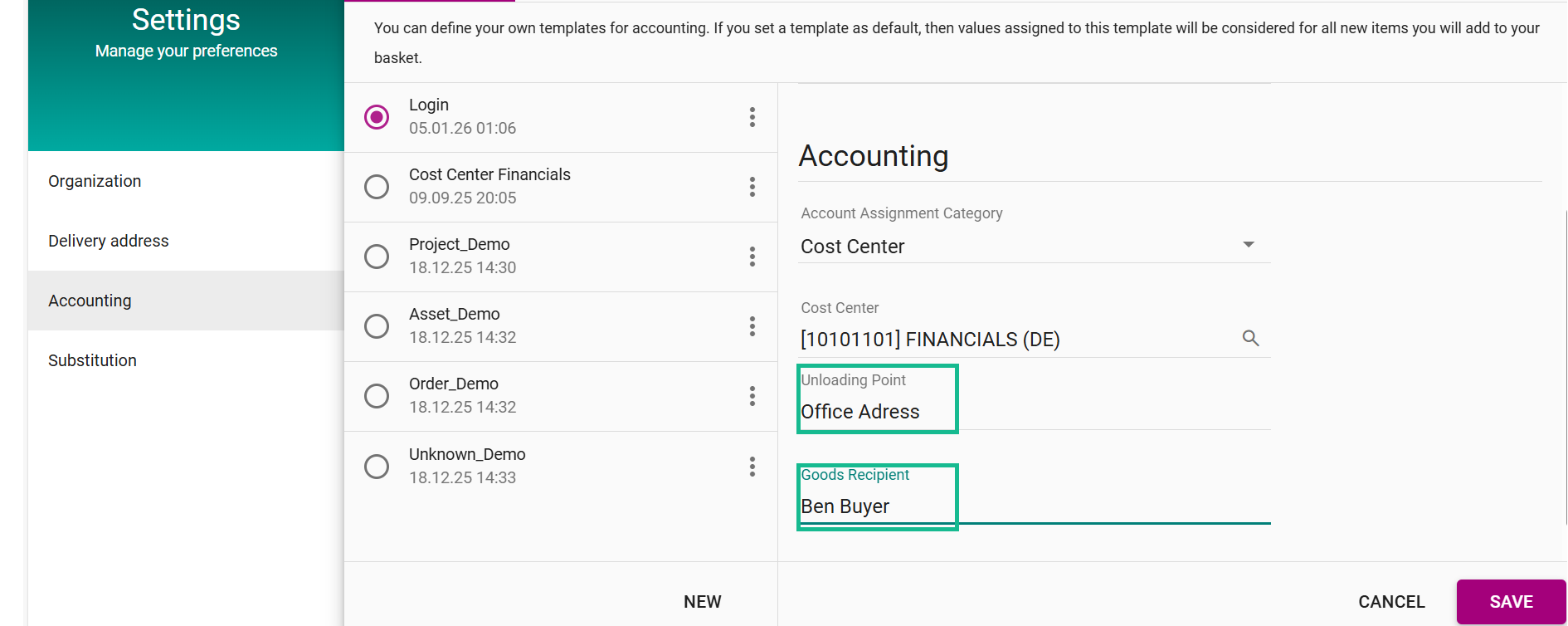
Fill the optional fields (not mandatory)
Unloading Point: Your standard delivery location (building or room).
Goods Recipient: Your name or contact data.
Save the template
Click save.
Your template is now stored in your profile and available for your next purchase requisition.
How to change the account assignment category
In User Settings under the Accounting section, a user can create a new Account Assignment Category if it does not exist in Accounting Settings. To use it as the default, the user must set it as default.
Steps for the end user:
Click the corner on your user icon and press Settings.
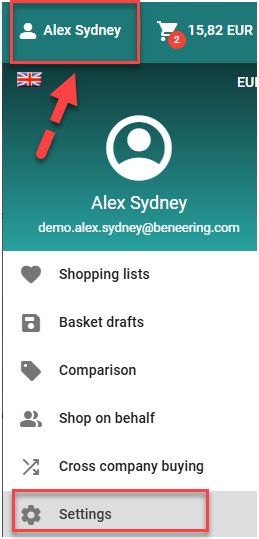
Navigate to the Accounting section in Settings.
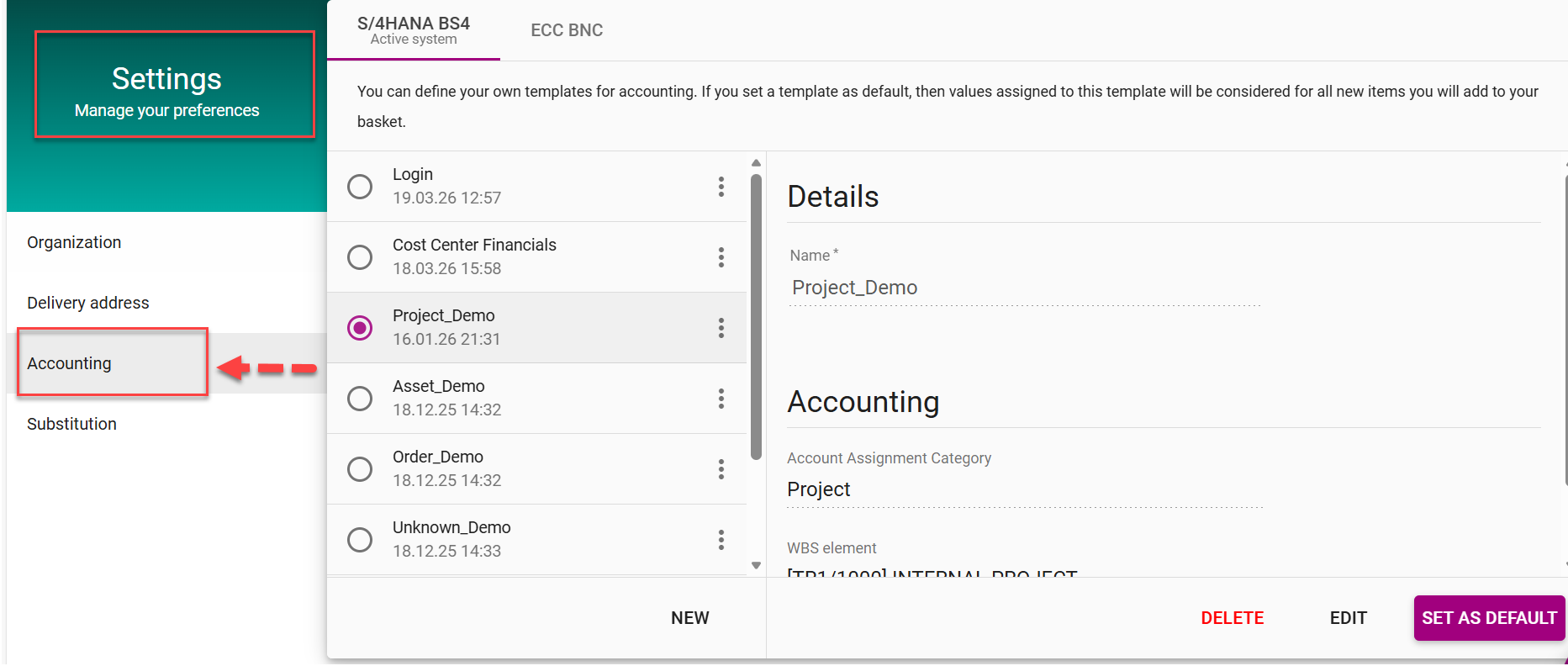
Check if the required Account Assignment Category and value exist.
If it does not exist, create a new one.
Select the desired Account Assignment Category.
Click the “Set as Default” button.
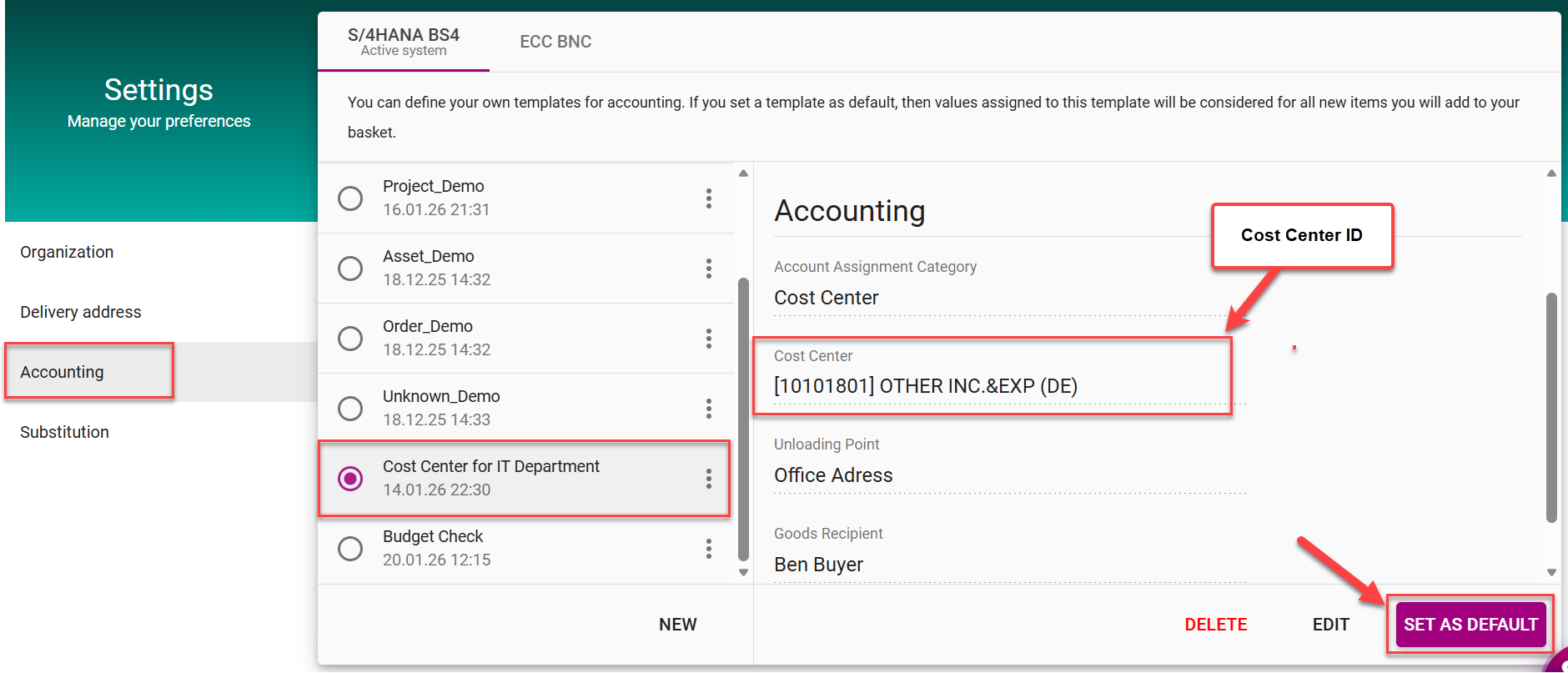
Once set as default:
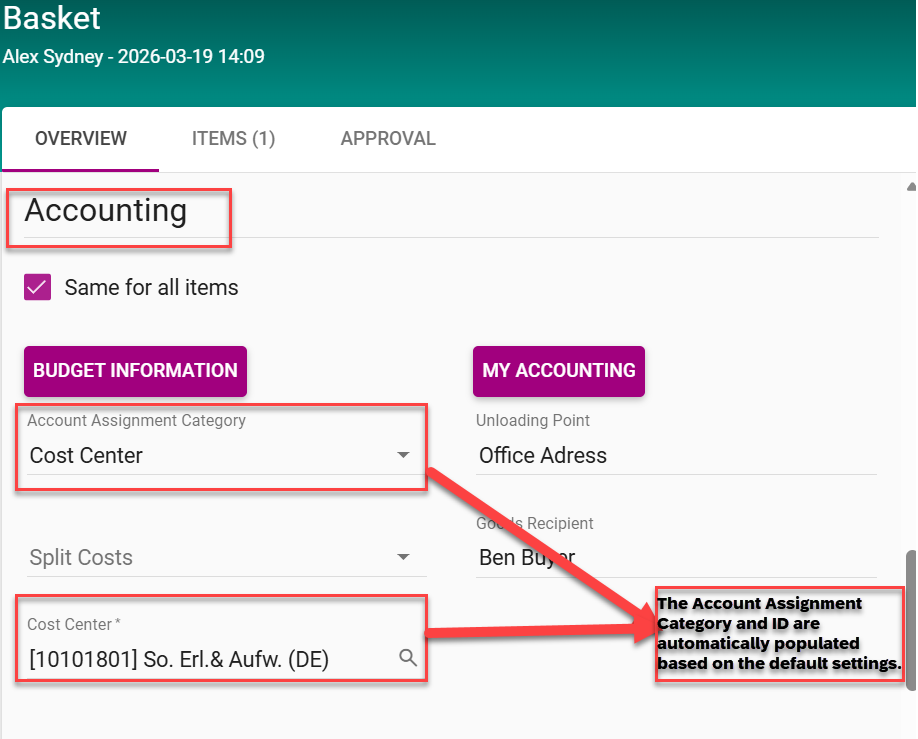
In the Shopping Cart, the Accounting section in the Basket Overview automatically prefills with the default Account Assignment Category and corresponding value.
Example: Cost Center for IT Department with ID [10101801] So. Erl.& Aufw. (DE) (as shown in the screenshot).