
Saving a Basket as Draft
Overview
This documentation outlines the functionality and usage of the basket management feature, which allows users to save, manage, and load basket drafts within the system.
Table of Contents
1. Key Features
Save Basket Drafts: Users can save their current baskets as drafts for later use.
Manage Basket Drafts: Users can view, load, and delete saved basket drafts.
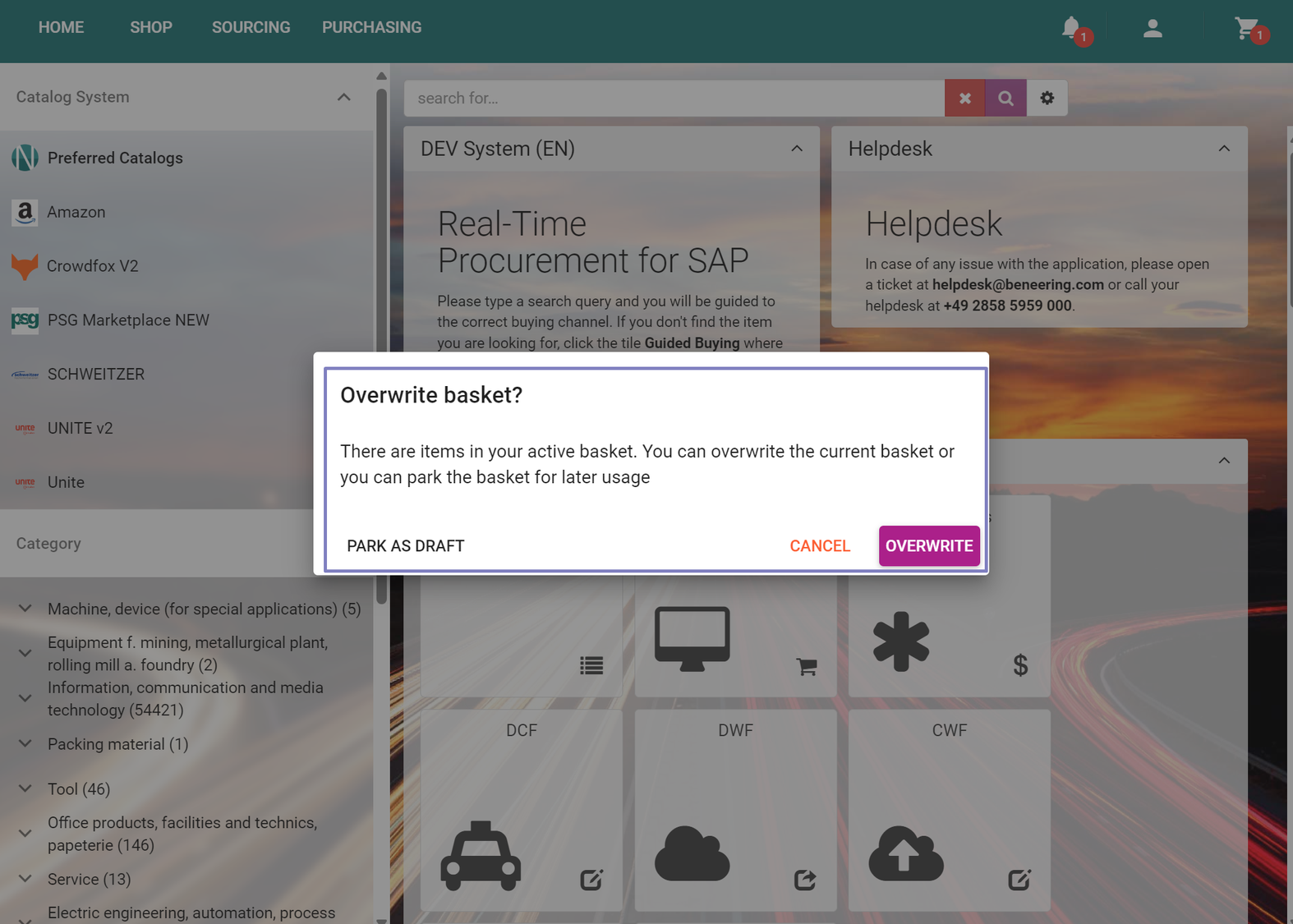
Overwrite Dialog: Users receive prompts when overwriting the current basket with a saved draft, ensuring data is not lost unintentionally.
2. Saving a Basket as Draft
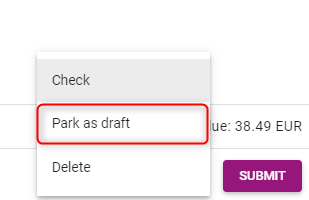
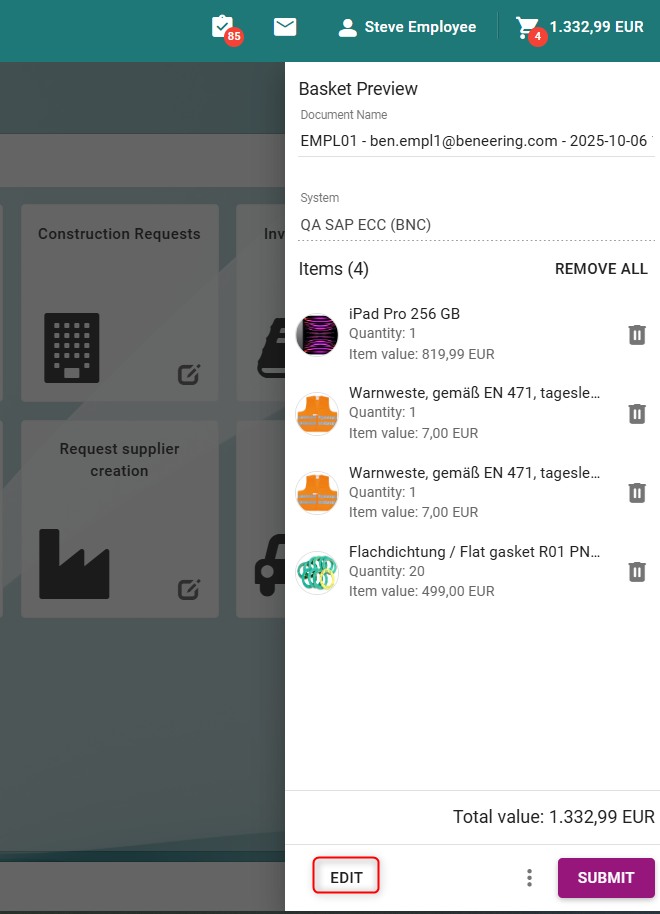
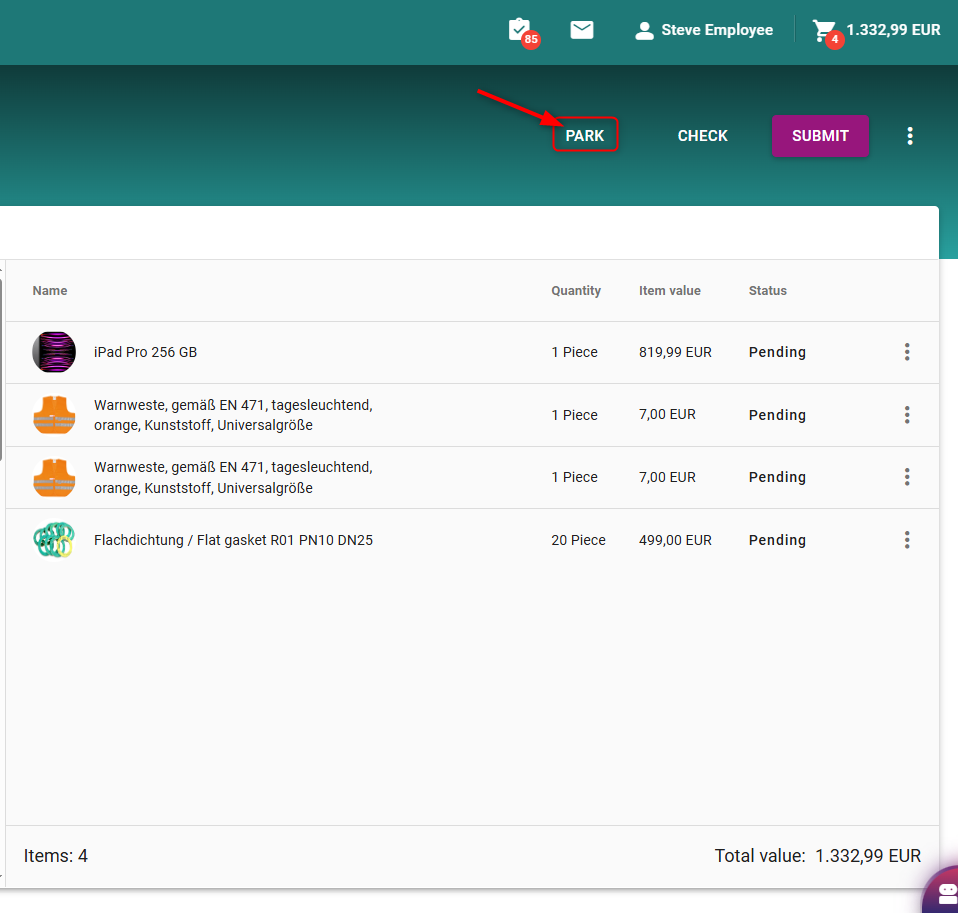
Users can park their basket as a draft from the basket preview or detail view.
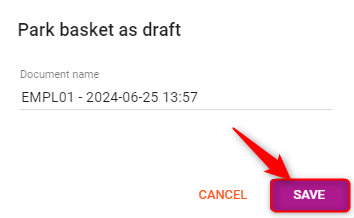
When parking, users must specify a name for the draft.
A success message confirms the action.
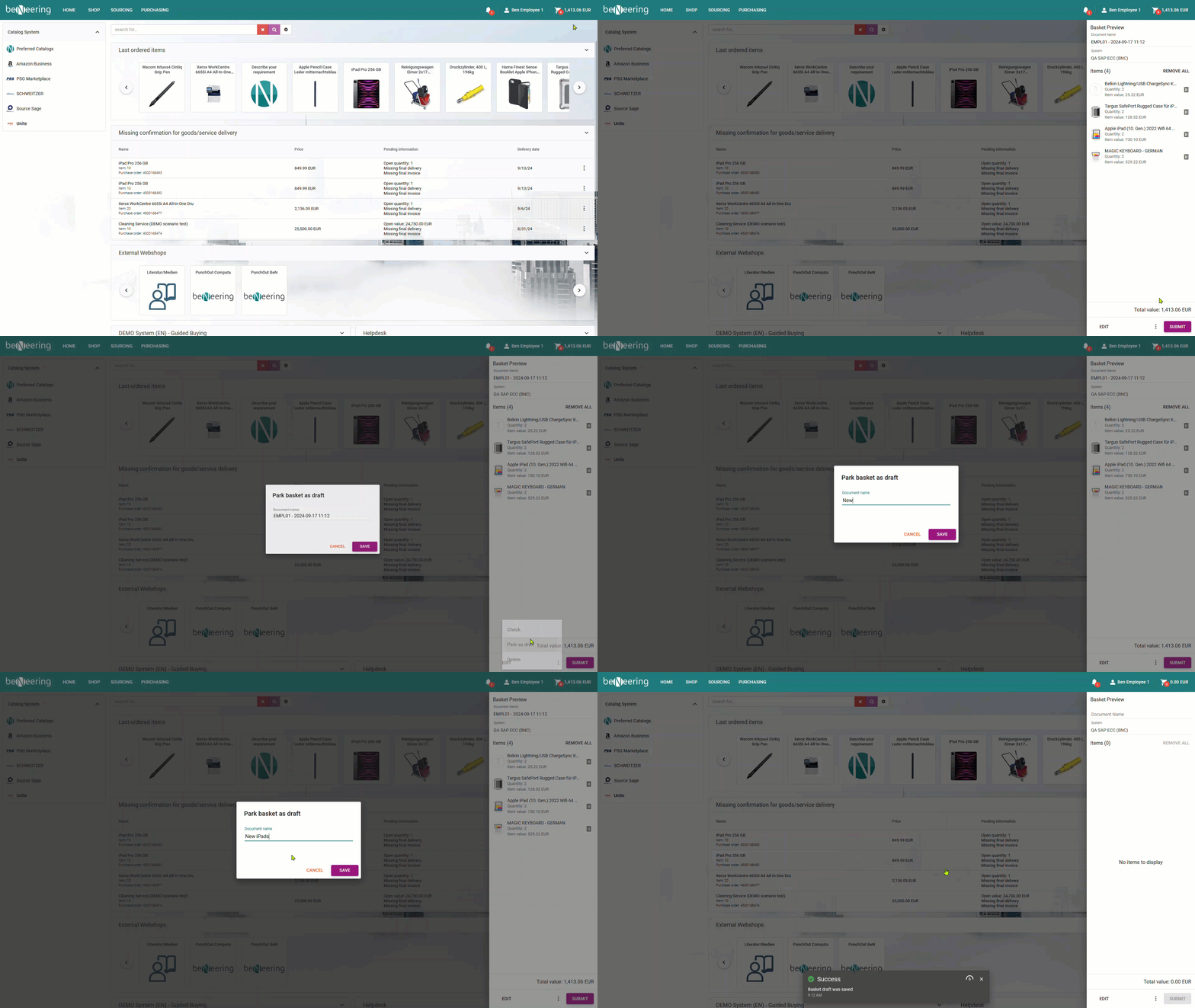
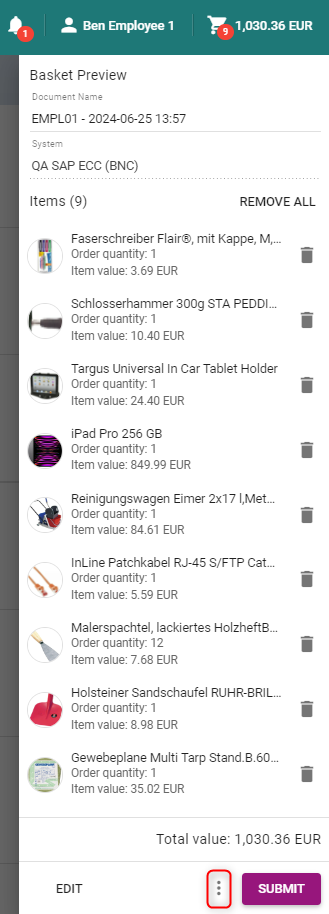
How to save a Basket Draft in the Mini Basket
How to save a Basket Draft in the Main Basket
Login to CSE and click on the basket on the top right after you have selected items.
Click on the PARK button on the top right side.
You will be asked to save the basket. Click on “SAVE”
A success message will appear:

Important Note: In certain situations, users may be unable to submit a basket with the entered data. To address this, users now have the option to save their basket to their personal "basket draft" list, allowing them to continue processing at a later time. Multiple basket drafts can be saved as needed, offering greater flexibility in managing ongoing tasks.
Loading a Basket Draft:
Users can load a saved draft into the active basket.
If the active basket has items, an overwrite dialog will appear.
Users can choose to overwrite the current basket or save it as a new draft.
How to load a Basket Draft
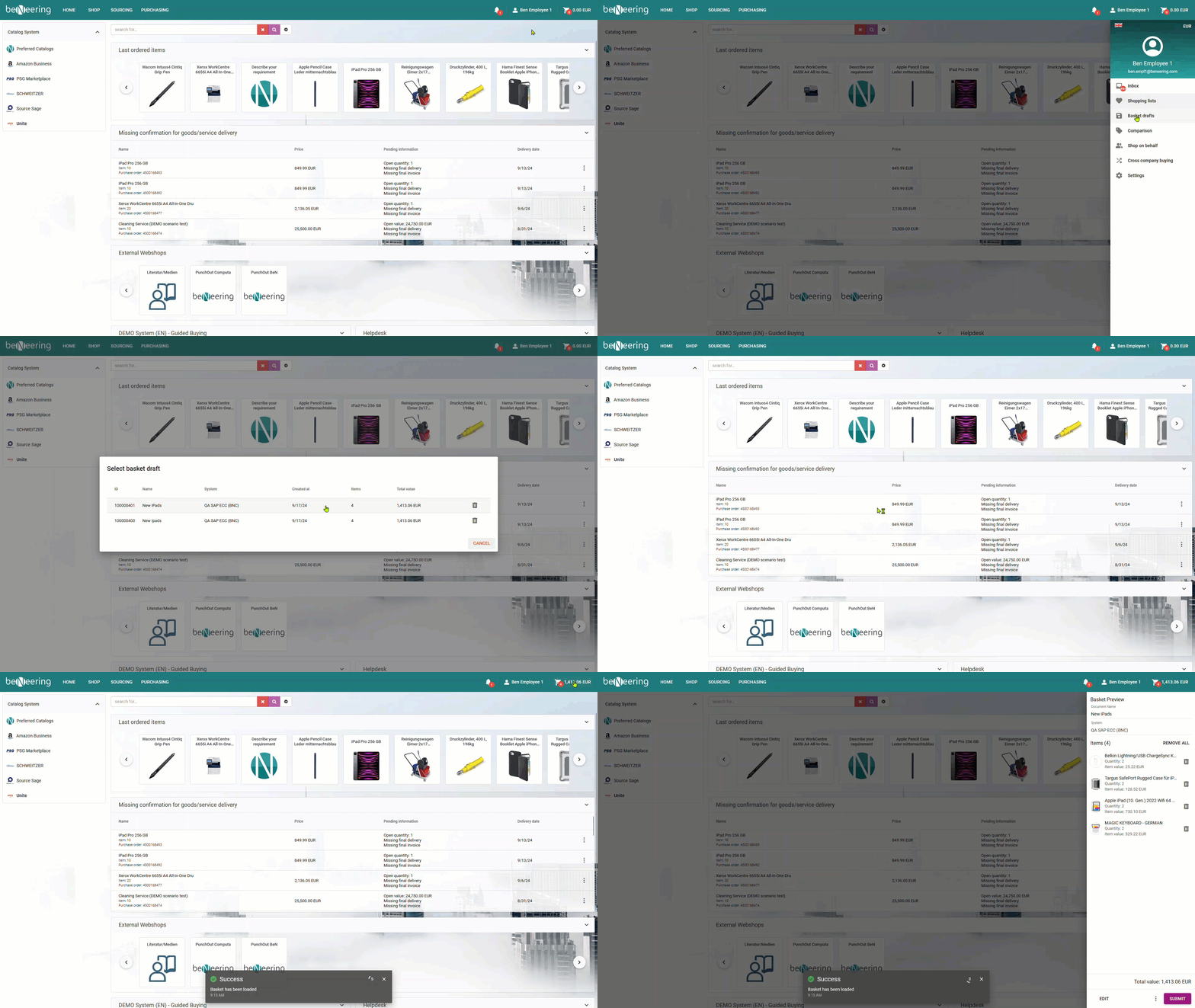
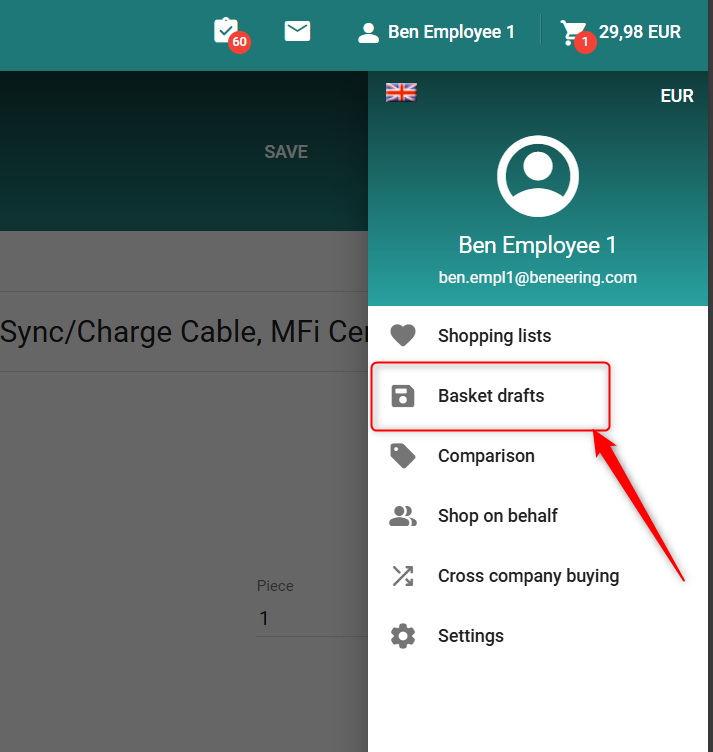
Click on your user name on the top right. Then Select Basket drafts.
Basket drafts
Here you can see your saved basket draft.

After you have loaded the basket draft it will dissappear from your saved basket draft list.
3. Overwriting the Active Basket:
Users receive a dialog prompt when trying to overwrite the active basket with a saved draft or edited document.
If the active basket has no items, overwriting occurs without a dialog.
4. Removing a Draft:
Selecting a draft removes it from the list and loads it into the active basket.
If the active basket has items, the overwrite dialog appears, allowing users to save the current basket as a new draft before loading the selected draft.