
Start Page Editor
Description
You can customize the start page in the frontend. To setup the startpage you can follow the below instructions.
Step-by-step guide
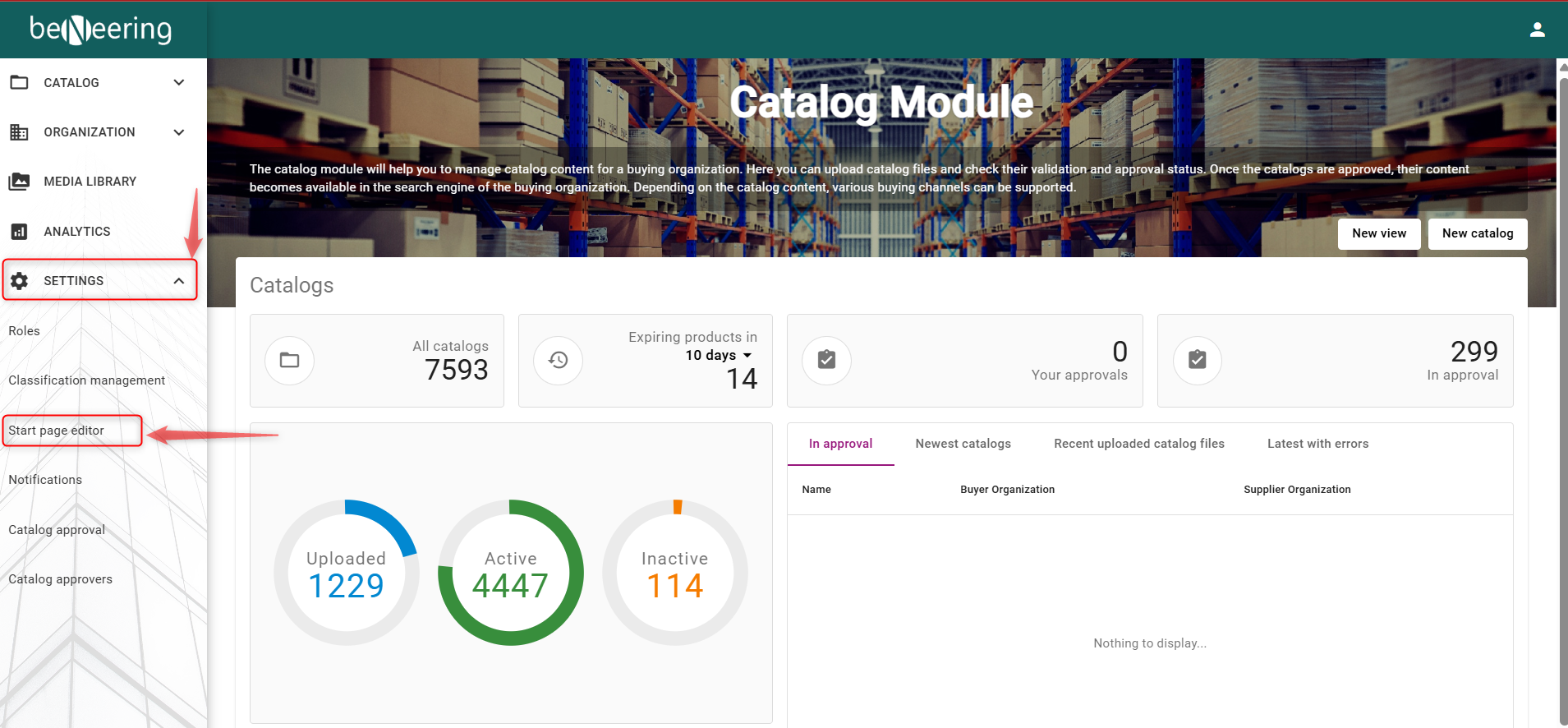
Click on the “Settings” and then on "Start Page editor". This will redirect to CSE and open a new window.
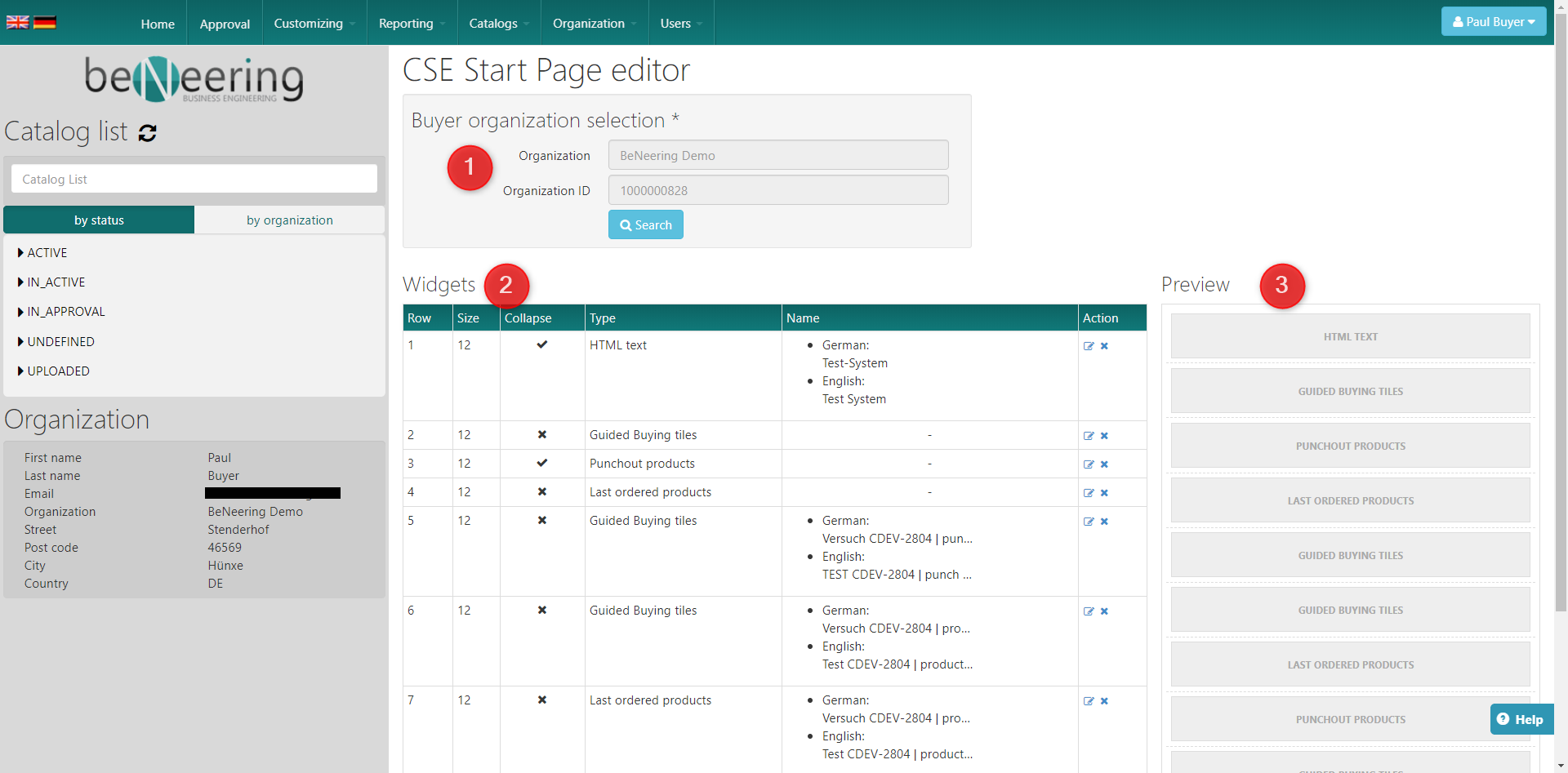
On the next screen you can choose the wanted organisation (1) see the widgets (2) and see a quick preview of the widgets (3) [in the preview you can see every row which will be displayed in the home screen].
To add a new widget you can scrool down below the tableand click on "New widget".
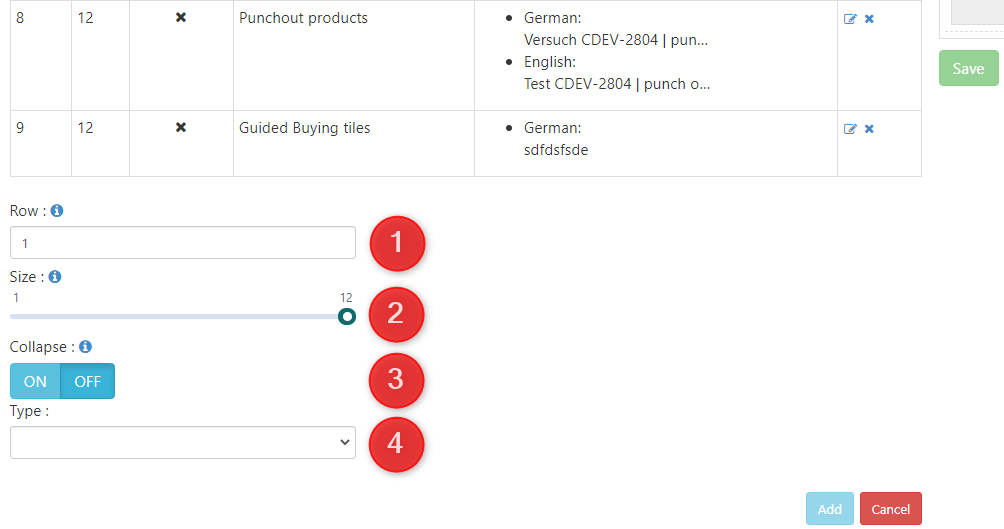
You can now set in which row the widget should be placed (1)[you can have up to 9 rows], which size the widget should have (2) [you can set a size from 1 to 12 where 12 is the full home screen width], if the widget should be collapsed by default (3) and choose the type (4).
Which types are available you can see in the table below:
Type | Use | Wikipage how you can set it | How it looks |
|---|---|---|---|
Category tiles | Show all categories in tiles | 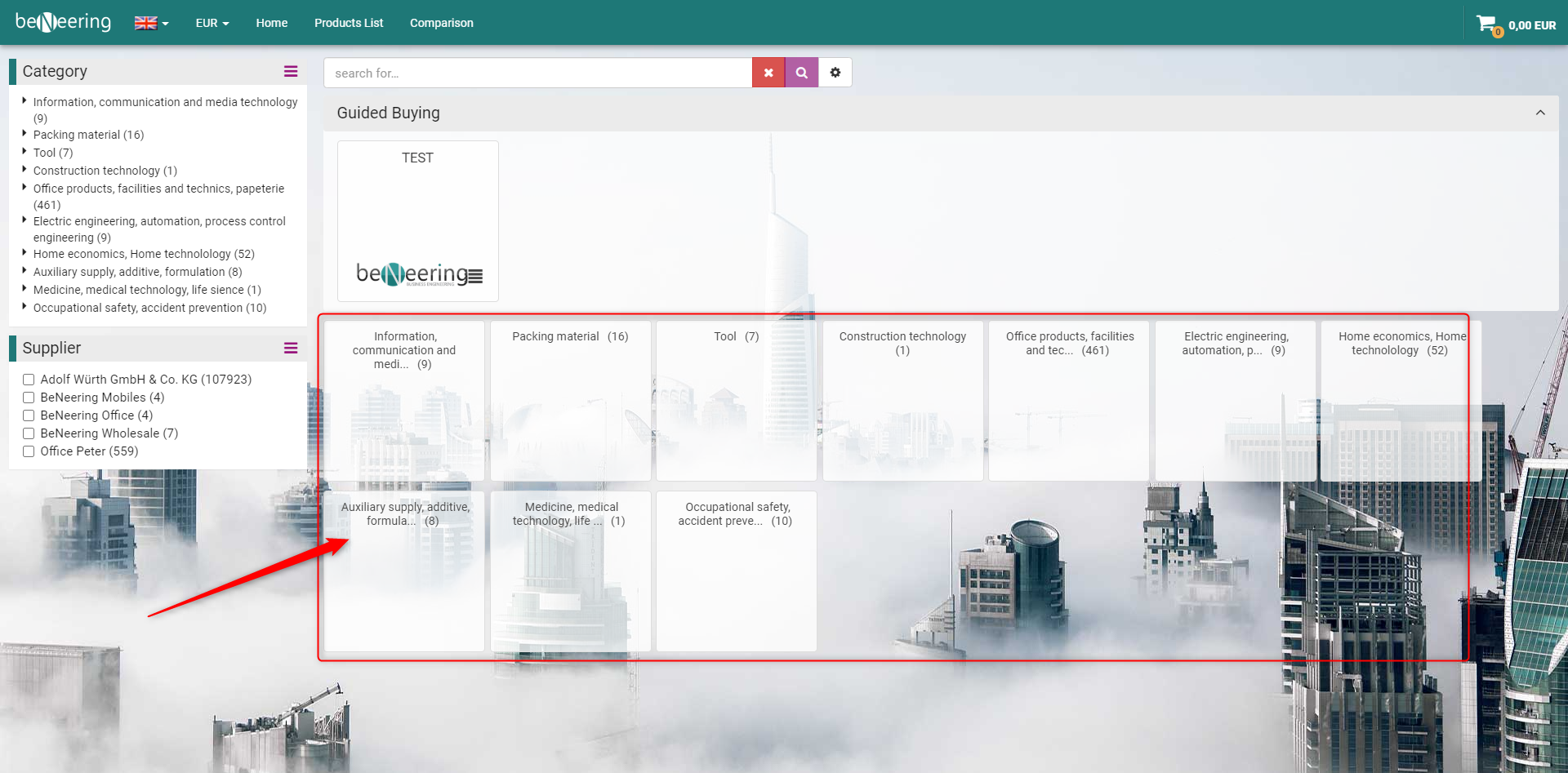 | |
Guided Buying tiles | Show the Guided Buying tiles | 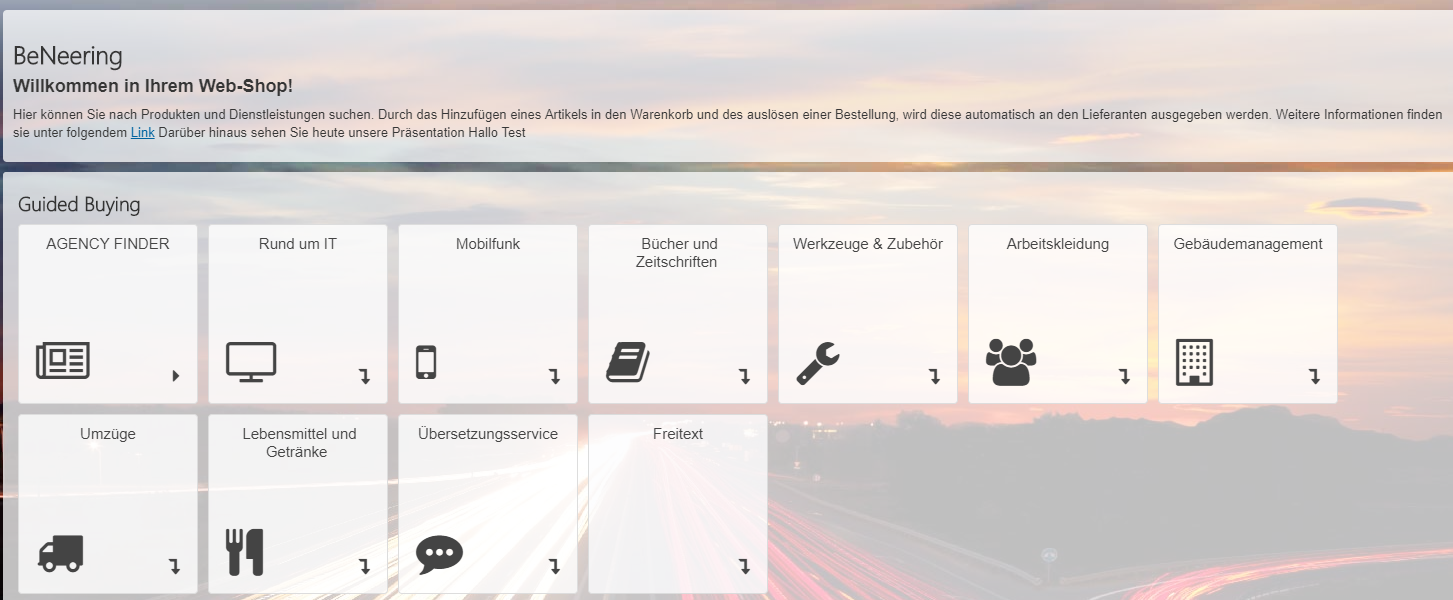 | |
HTML text | Set an HTML text for e.g. information | 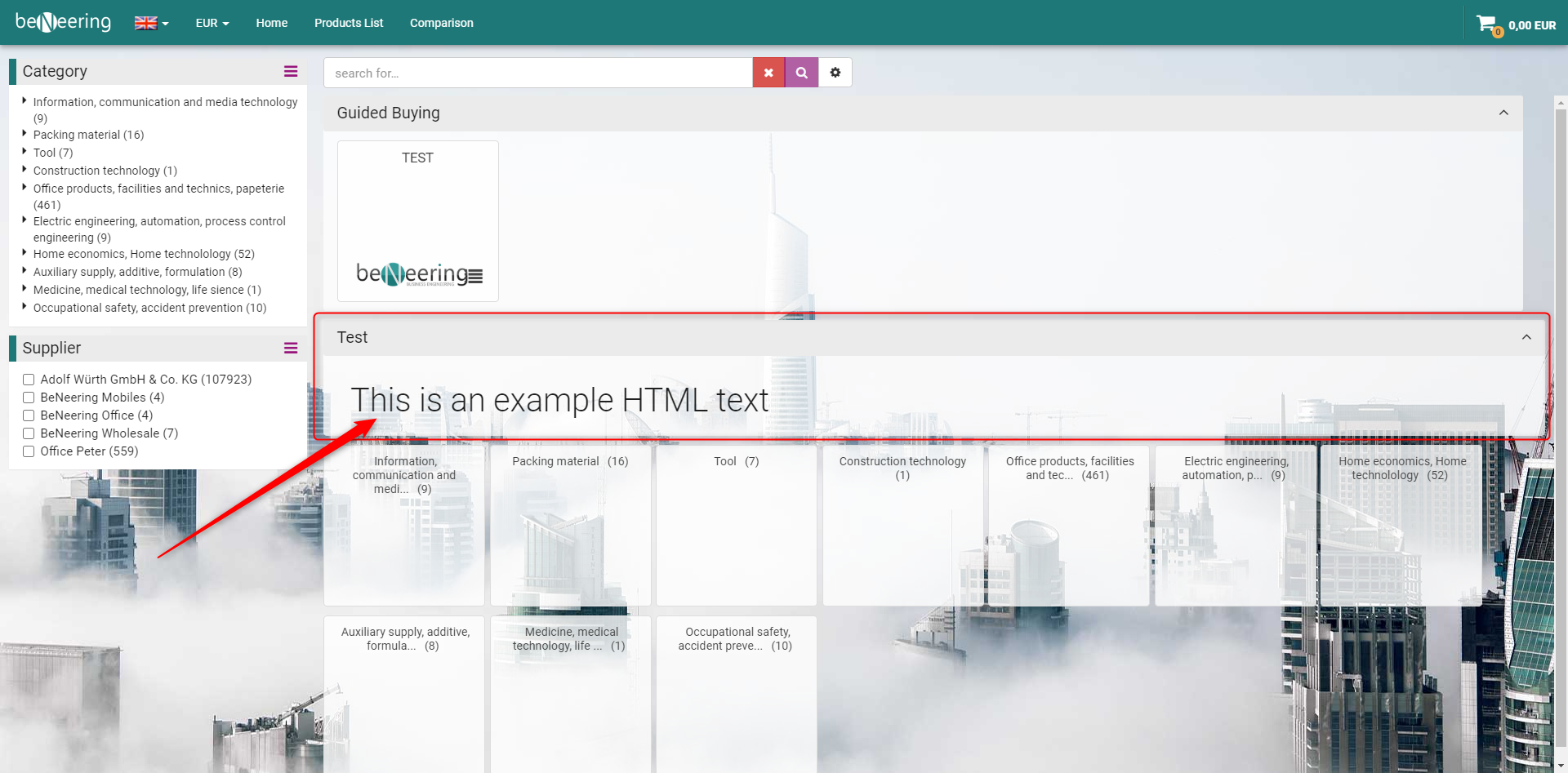 | |
Last ordered products | Shows the last ordered products | 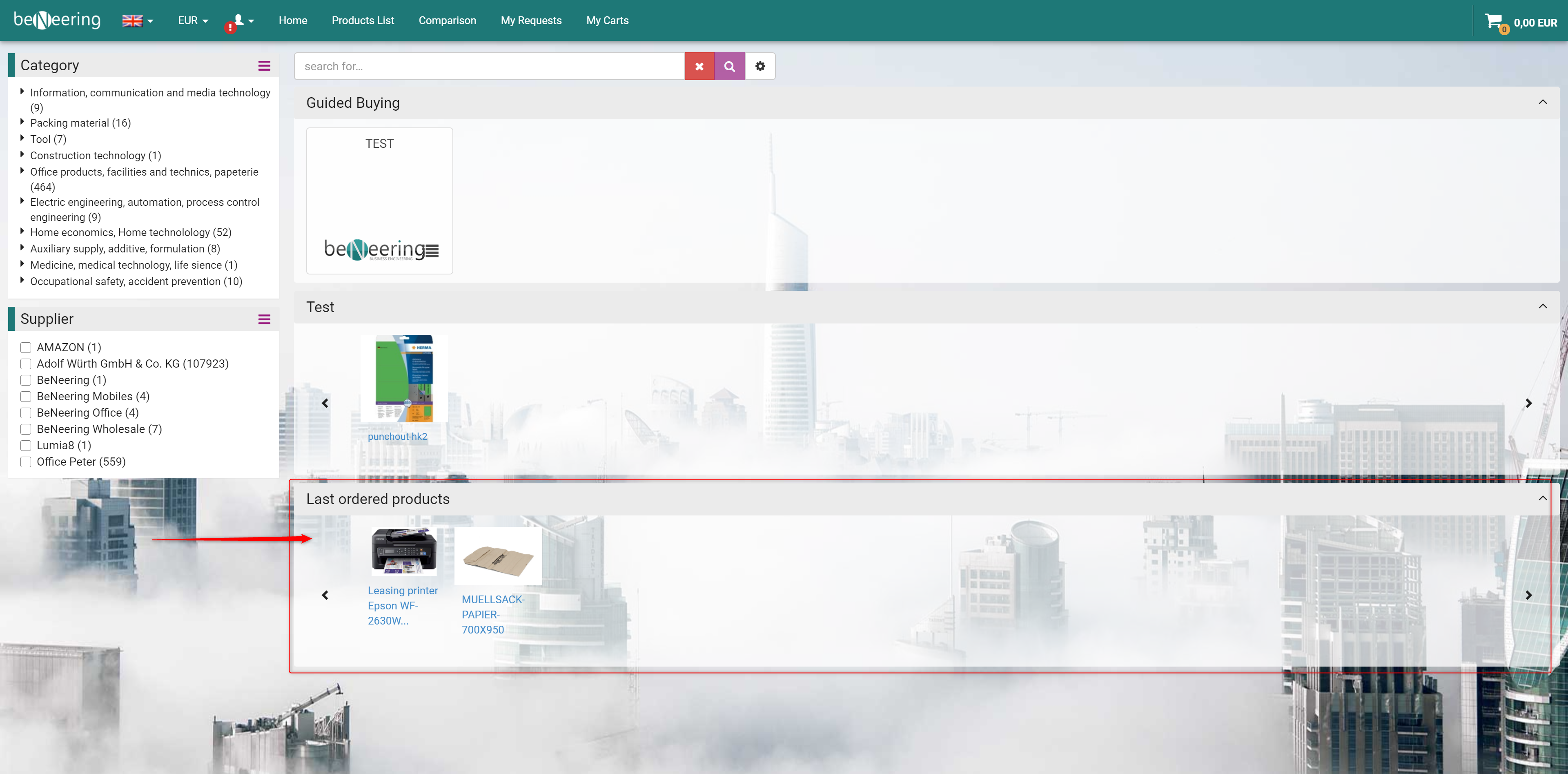 | |
Punchout products | Shows all set punchouts | 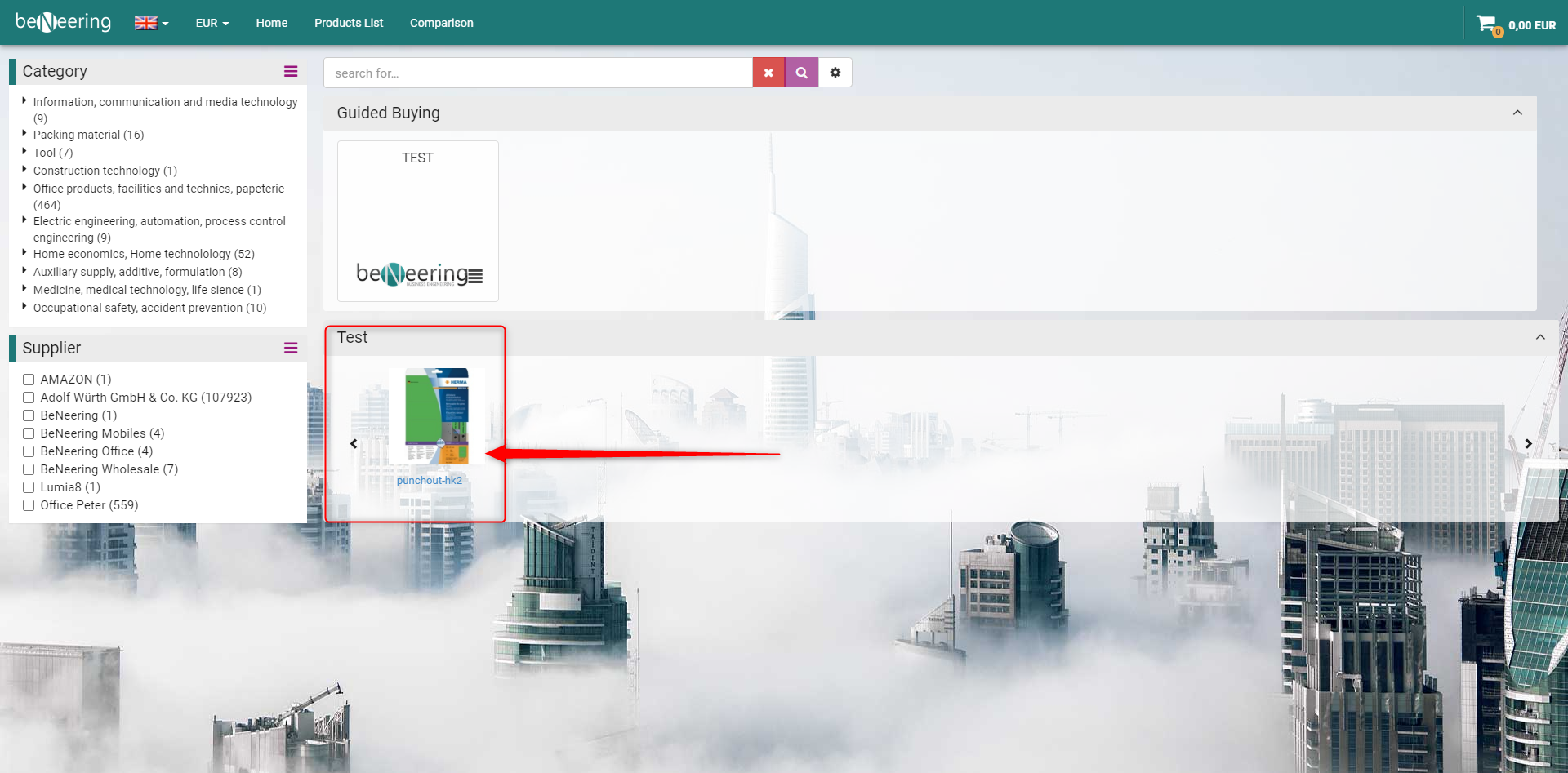 |

If you damaged the startpage you have the option to restore a previous setting via the orange "Restore" button on the right side of the Start Page editor.